AI Usage Bar

Your AI limits, one glance away.

AI Usage Bar shows how much of your Claude, Codex, GitHub Copilot, Cursor, Gemini and Grok Bot plans you have used, right in the macOS menu bar or the Windows and Linux tray, and when each limit resets.

Free and open source (MIT). macOS 13+, Windows 10/11 and Linux.

The AI Usage Bar popover showing Claude and Grok Bot limits

Download

Always the latest release, built by GitHub Actions straight from the source code. Once installed, the app tells you when a new version is out and updates itself in one click.

For your system

macOS

Native app for macOS 13 or newer, Apple Silicon and Intel.

AIUsageBar-macOS.dmg

Download for Mac
For your system

Windows

Installer for Windows 10 and 11 (64-bit). No admin rights needed.

AIUsageBar-Windows-Setup.exe

Download installer
For your system

Linux

AppImage for 64-bit Linux: make it executable and run it. On GNOME, tray icons need the AppIndicator extension (Ubuntu has it).

AIUsageBar-Linux-x86_64.AppImage · or .tar.gz

Download AppImage

All releases and release notes

What it shows

The same numbers as claude.ai → Settings → Usage, Claude Code's /usage, ChatGPT's Codex usage page, GitHub's Copilot settings, Cursor's own Usage screen, the quotas the Gemini CLI reports and Grok Bot's own Usage screen.

Claude

Current 5-hour session, weekly limit for all models, weekly per-model limits (like Fable) and where this week's usage went: Claude Code, Chat, Cowork.

Codex

Current 5-hour session and weekly limit, and when each resets. Uses an unofficial ChatGPT endpoint, not yet verified against a real account.

GitHub Copilot

Premium requests used this month and when the allowance resets, plus chat and code completions on plans where they are limited. Uses an unofficial GitHub endpoint.

Cursor

For legacy plans billed monthly: the cycle's included usage, its Auto and API pools, dollars spent and on-demand spending, and when the cycle resets. Uses an unofficial Cursor endpoint.

Gemini

Daily quota per model (2.5 Pro first, then Flash and Flash-Lite) and when it resets. Uses an unofficial Google endpoint, not yet verified against a real account.

Grok Bot

Weekly limit and when it resets, plus banked resets and on-demand usage when your plan has them.

At a glance

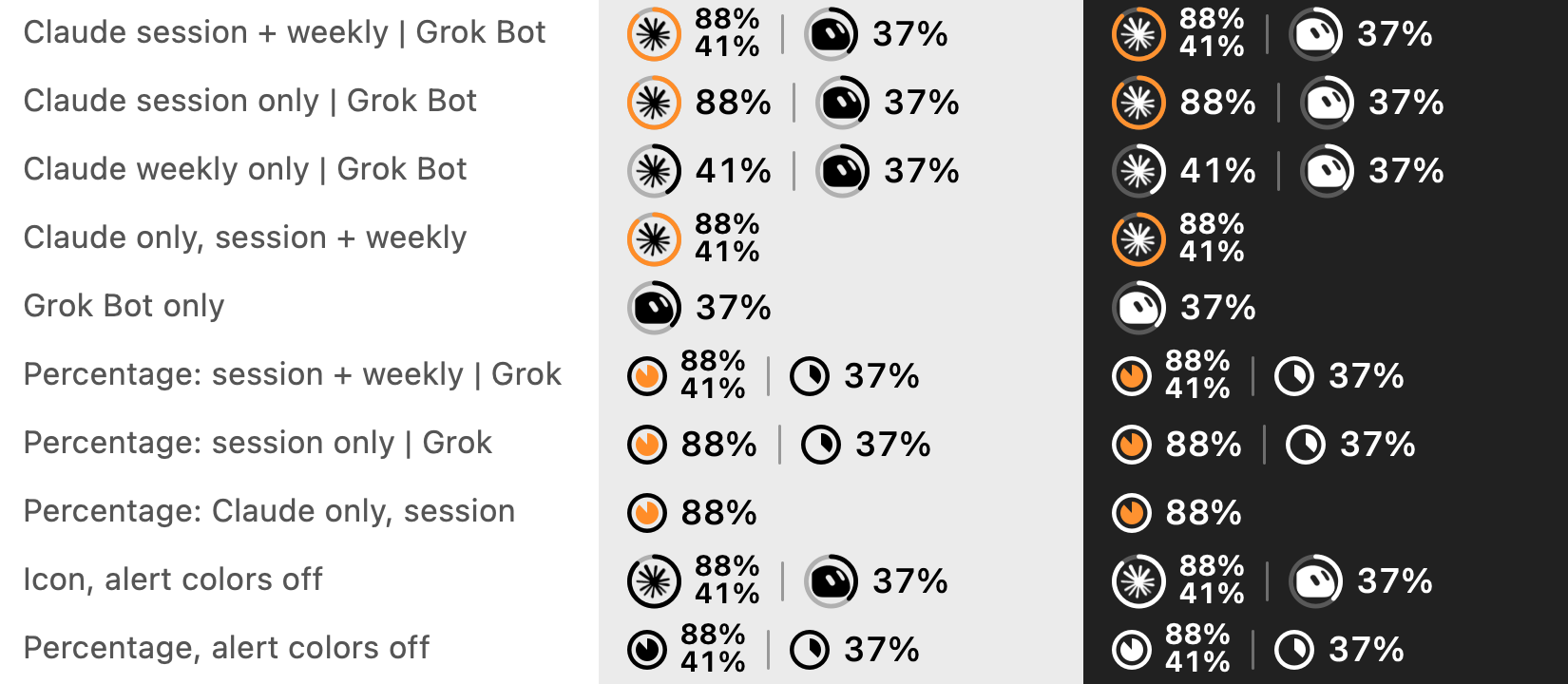
Each AI gets a ring that fills with usage, around its official icon (taken from the installed app or extension) or its percentage. The ring turns orange or red as you get close to a limit.

Taskbar widget (Windows)

Optional: a small pill on the Windows taskbar with each agent's official icon in a progress ring plus its percentage. Hover for details, click to open the popup, and choose where it sits.

One tab per agent

With two or more AIs connected, the popup gets one tab each, showing the limit you pick, or all of them on one screen if you prefer. A guided setup tab lists every supported agent and how to sign in; the app reuses your existing logins and never asks you to log in.

Your choice

Pick what each AI shows (session, weekly or both on macOS), the icon style, whether alert colors are on, and English or Portuguese.

Private by design

It reuses the logins of the apps you already have, read only and in memory. Tokens are never stored, refreshed or sent anywhere but the service they belong to.

Native on each system

Swift and SwiftUI on macOS, C# and WPF on Windows, C# and Avalonia on Linux. Small, fast and at home next to your other menu bar and tray icons.
The popover on macOS
macOS: one menu bar item for every AI
The popup on Windows
Windows: one tray icon per AI, same popup
Menu bar styles on macOS, light and dark

macOS menu bar styles, with alert colors on and off.

First launch

The apps are not signed with paid Apple or Microsoft certificates yet, so each system asks you to confirm once.

macOS

  1. Open the .dmg and drag AI Usage Bar into Applications.
  2. Right-click the app → Open, then confirm.
  3. If you use Grok Bot, choose "Always Allow" when macOS asks about "Grok Bot Safe Storage".

Windows

  1. Run the installer. If SmartScreen appears, click "More info" → "Run anyway".
  2. Find the ring icons in the tray, next to the clock (they may start in the ^ overflow area; drag them out).
  3. Left-click an icon for details; right-click for refresh and quit.

Linux

  1. Make the AppImage executable (chmod +x, or Properties → Allow executing) and open it. It adds itself to the app menu.
  2. Find the ring icons in the tray. On GNOME, turn on the "AppIndicator and KStatusNotifierItem Support" extension; without a tray, open the app from the menu to see the popup.
  3. Click an icon for details. ⚙ in the popup → Start at login.

Requirements: Claude Code signed in on the same computer (the Claude app or the claude command). For Codex, the Codex CLI or extension signed in with ChatGPT (codex login). For GitHub Copilot, a Copilot plan and a signed-in editor plugin (VS Code, JetBrains) or the gh CLI. For Cursor, Cursor installed and signed in. For Gemini, the Gemini CLI signed in with Google (gemini). For Grok Bot, the Grok Bot app installed and signed in. The Windows and Linux versions are new; please report anything odd on GitHub.